
FabFilter Pro-C 3 online help
Table of contents
Go to sectionFabFilter Pro-C 3 Help
Introduction
Using FabFilter Pro-C 3
Full screen mode, resizing and scaling
Presets
Purchasing FabFilter Pro-C 3
Support
Instance list
Pro-C 3 is now part of the instance list ecosystem of Pro-Q 4. In Pro-Q 4, you can open the instance list by clicking on the instance button at the center of the bottom bar. In this view, you can see and edit all instances of Pro-Q 4, Pro-C 3, Pro-DS and Pro-G (more plug-ins will follow) in your session, organized per track. It's like having a custom, multi-track channel strip plug-in. You can set up a whole mix without leaving the Pro-Q 4 window!
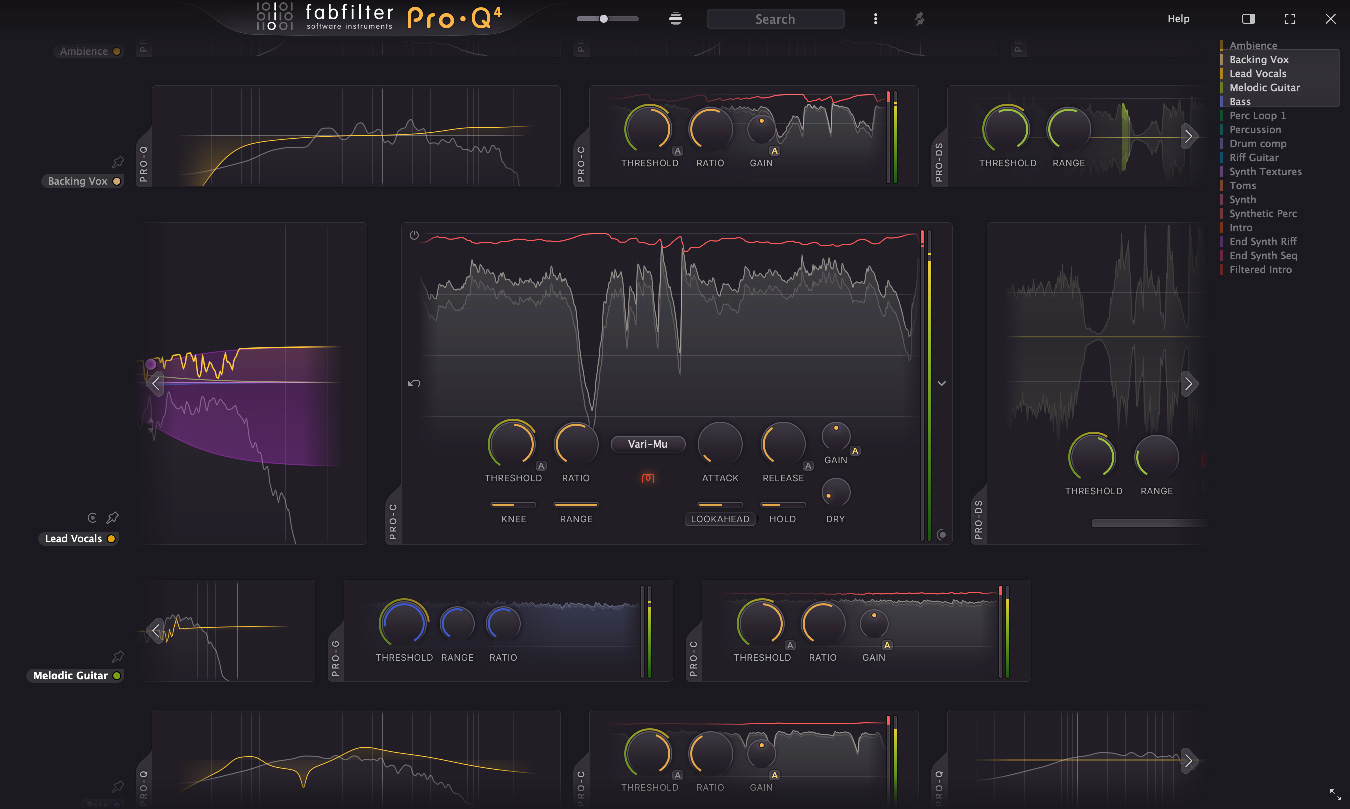
Here's how it works:
- In Pro-Q (since version 4.10), the instance list now shows Pro-Q 4, Pro-C 3, Pro-G and Pro-DS instances (more plug-ins will follow), and instances are organized per track
- Instances will order themselves according to how they are inserted on the track on start/stop in your DAW.
- Every plug-in can be easily bypassed, using the Bypass button at the left top of the instance item, shown when hovering above instance item.
- Instances offer functionality according to the zoom level (zoom slider at the top). At the smallest levels, plug-ins only show only a few essential controls. At the largest levels, you can edit almost all plug-in parameters.
- Clicking on the instance background (or using the enlarge button at the left top at higher zoom levels) will zoom the whole track to the maximum zoom level for easy editting. Clicking anywhere on the list background will zoom out to the general zoom level again.
- You can acces the instance's preset menu and load plug-in presets, or copy and paste plug-in settings via the menu button at the right, visible when hovering over the instance item.
Learn more about the instance list in the
Pro-Q help file
 .
.
Next: Input and output options
See Also
Dynamics controls
Using FabFilter Pro-C 3